Proxmox GPU passthrough: pass a graphics card to a VM
How to hand a graphics card exclusively to a VM in Proxmox VE, when a container with device access is enough, and what to watch for in rack servers.
- Published
- Updated
- Reading time
- 8 min
- Topic
- AI & homelab
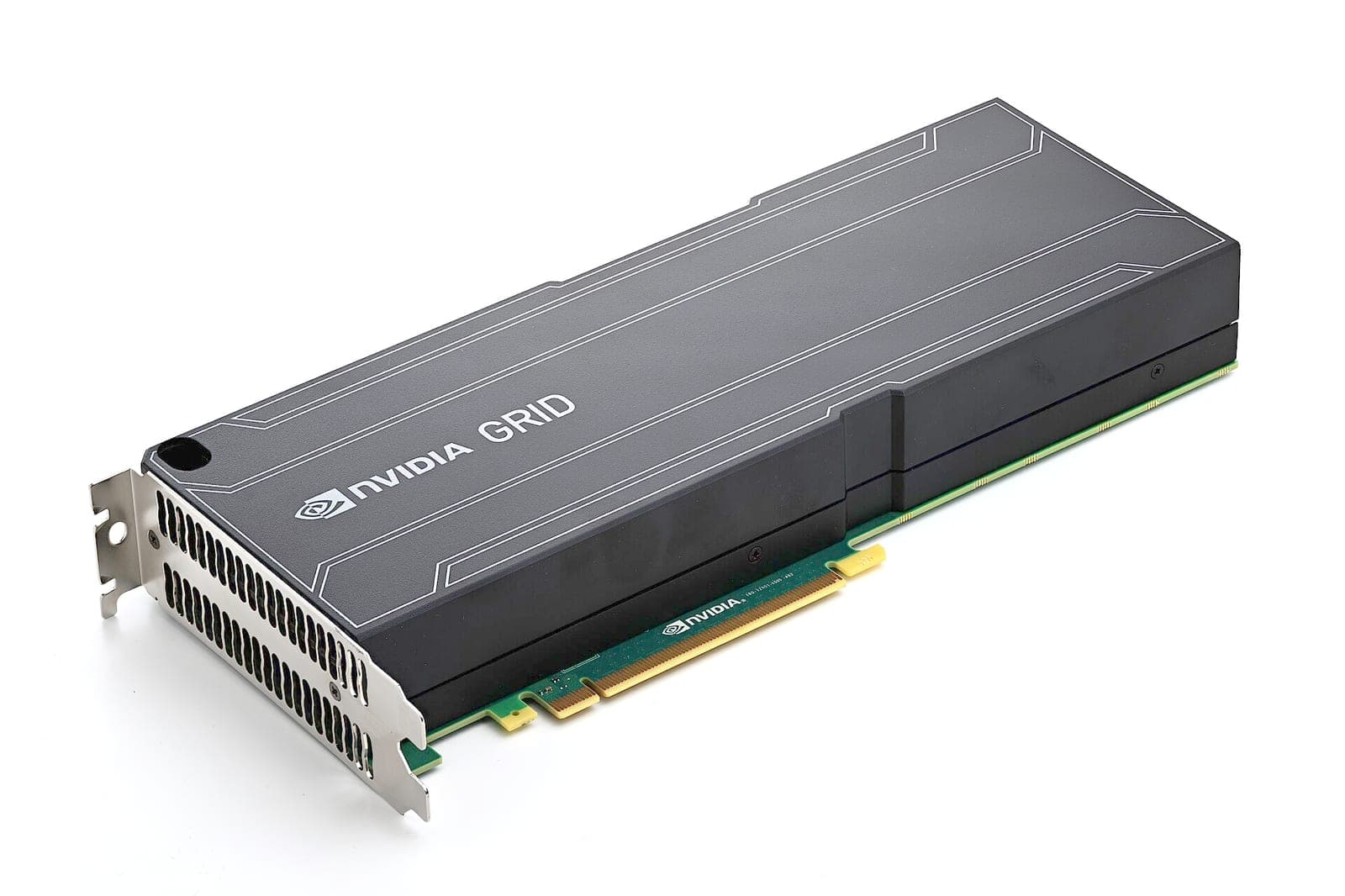
Phiarc, CC BY-SA 4.0 · Wikimedia Commons
Contents9 sections
- VM passthrough or container: two routes to the GPU
- Requirements: CPU, BIOS and server
- Step by step: GPU passthrough in Proxmox
- IOMMU groups: server board or consumer board
- VM settings and drivers in the guest
- Which card for which server?
- Typical uses: Plex, Ollama and Windows
- Common pitfalls
- Frequently asked questions
Key points
- With PCI passthrough, a VM gets the whole graphics card to itself and installs its own driver, Windows included.
- You need an active IOMMU (Intel VT-d or AMD-Vi) and a card in its own IOMMU group. Server boards tend to be less trouble than consumer boards here.
- On the host, bind the card to vfio-pci and block the normal driver. In the VM, choose q35, OVMF (UEFI) and “All Functions”.
- An LXC container with device access is the lighter option: the driver runs on the host and several containers share the card.
- Rack servers have their own onboard graphics for iDRAC or iLO, so the NVIDIA card is entirely free for the VM.
Proxmox VE can hand a graphics card straight to a virtual machine, which drives it with the standard NVIDIA driver. That lets a single homelab server or rack server run a media server with hardware transcoding, an AI VM with Ollama or a Windows workstation with proper 3D acceleration.
VM passthrough or container: two routes to the GPU
With PCI passthrough, one VM takes over the entire card and loads its own driver. With an LXC container and device access, the driver runs on the host instead, and the container only gets access to the card's device files.
PCI passthrough to a VM
- Any guest OS, Windows included
- Own driver, independent of the host
- Clean separation between host and guest
- Only one running VM can use the card
- The VM's memory is fully reserved
- More setup on the host
Best for: Ideal for Windows VMs, AI VMs and isolated systems.
LXC container with device access
- Several containers share one card
- No IOMMU required
- Hardly any overhead
- Linux applications only
- Driver version must match the host
- Weaker isolation than a VM
Best for: Ideal for Plex, Jellyfin and Ollama in a container.
For a container, install the NVIDIA driver on the host, expose device files such as /dev/nvidia0 and /dev/nvidia-uvm, and install the same driver version, minus the kernel module, in the container. Newer Proxmox releases offer device passthrough for containers in the web interface. You can't use both at once: a card bound to vfio-pci is invisible to the host driver.
Requirements: CPU, BIOS and server
- Virtualisation with IOMMU: Intel processors need VT-x and VT-d, AMD processors AMD-V and AMD-Vi.
- Above 4G decoding: usually required by cards with a large address window, such as the Tesla P40. Servers sometimes call it “Memory Mapped I/O above 4GB”. Smaller cards such as the T1000 or T4 usually work without it; enabling it does no harm.
- Separate graphics for the host: ideally onboard, so the host keeps a console.
BIOS names vary by vendor and generation. On Dell PowerEdge it is usually “Virtualization Technology” under Processor Settings; on HPE ProLiant, look for the Virtualization Options in the System Utilities, with separate switches for VT-d or AMD-Vi. The BIOS is easiest to reach via iDRAC, iLO or IPMI.
Step by step: GPU passthrough in Proxmox
Run the commands as root on the host. Installing Proxmox itself is covered in Proxmox instead of VMware.
Enable IOMMU in the BIOS
Turn on VT-x and VT-d, or AMD-V and AMD-Vi, plus Above 4G decoding for large cards. Save and reboot the host.Check the kernel parameters
On AMD the kernel enables the IOMMU anyway; current Proxmox kernels do so on Intel too, while older releases need intel_iommu=on. iommu=pt is optional. With GRUB, the parameters go into the GRUB_CMDLINE_LINUX_DEFAULT line in /etc/default/grub, followed by update-grub. With systemd-boot, for example ZFS on UEFI, they go into /etc/kernel/cmdline, followed by proxmox-boot-tool refresh.Load the VFIO modules
Add one line each for vfio, vfio_iommu_type1 and vfio_pci to /etc/modules.Find the device IDs
lspci -nn | grep -i nvidia lists the card. There are usually two functions, graphics chip and audio device. Note both IDs in the form 10de:xxxx.Bind the card to vfio-pci
Create /etc/modprobe.d/vfio.conf containing the line options vfio-pci ids= followed by both IDs, separated by a comma. In a file under /etc/modprobe.d, block the host drivers with blacklist nouveau and blacklist nvidia.Rebuild the initramfs and reboot
Run update-initramfs -u -k all and reboot. dmesg | grep -e DMAR -e IOMMU then shows whether the IOMMU is active, and lspci -nnk should list vfio-pci as the driver in use.Create the VM
Machine type q35, BIOS OVMF (UEFI) with an EFI disk, CPU type host. Under Hardware, add a PCI device, select the card as a raw device or via a resource mapping, and tick All Functions and PCI-Express.Install the driver in the guest
Install the standard NVIDIA driver in the VM. On Linux, nvidia-smi shows the card; on Windows, Device Manager does.
IOMMU groups: server board or consumer board
The IOMMU sorts devices into groups, and only whole groups can be passed through. If the GPU shares a group with the network chip or SATA controller, all of them go to the VM or none do. It is normal for the graphics chip and audio function of the same card to share a group. Proxmox shows the groups when you add a PCI device.
Server boards connect most PCIe slots directly to the CPU and usually keep the groups cleanly separated. On consumer boards, several slots and onboard devices often hang off the chipset and share a group. The often-recommended pcie_acs_override parameter only appears to split them and weakens isolation between VM and host. A CPU-attached slot or a proper server board is the better answer.
VM settings and drivers in the guest
- q35 and OVMF: modern cards and drivers expect a PCIe bus and UEFI.
- All Functions: passes through the graphics chip and the audio function together.
- ROM-Bar: leave it switched on.
- Primary GPU: only needed if the card is the VM's main display, for example with a monitor attached. Not for transcoding, AI or remote desktop.
GeForce, Quadro and Tesla
Professional NVIDIA cards such as Quadro, RTX and Tesla are intended for VMs. GeForce cards long weren't: older drivers refused to run in a VM, and Windows reported error code 43. Since driver version 465, NVIDIA allows GeForce cards in Windows VMs. Current drivers make the old VM-hiding tricks unnecessary.
Which card for which server?
In a server, form factor, power and cooling matter more than speed:
| Card | Form factor | Power and connector | Cooling | Display outputs | Typical use |
|---|---|---|---|---|---|
| T1000 8 GB | low profile, single slot | 50 W, slot power only | fan | yes | 1U servers, media server |
| Quadro P2000 | full height, single slot | 75 W, slot power only | fan | yes | media server, Windows VM |
| Quadro RTX 4000 | full height, single slot | 160 W, 8-pin | fan | yes | workstation VM |
| Tesla T4 | low profile, single slot | 70 W, slot power only | passive | no | AI and transcoding in the rack |
| Tesla P40 | full height, full length, dual slot | 250 W, 8-pin EPS | passive | no | LLM VM with larger models |
- 1U servers: usually only low-profile cards fit.
- Passive Tesla cards: the T4 and P40 have no fan and rely on a rack server's airflow. See Tesla T4 cooling.
- Auxiliary power: many servers lack standard PCIe power connectors, so the RTX 4000 and P40 need the vendor's GPU cable.
You'll find cards in every form factor among our used server GPUs.
Typical uses: Plex, Ollama and Windows
Plex or Jellyfin VM: a T1000 or P2000 is enough for hardware transcoding. Codecs per card are compared in our guide to the best GPU for Plex and Jellyfin. In a container, device access is often simpler.
AI VM with Ollama: here, video memory is what counts. The Tesla T4 with 16 GB suits smaller language models, the P40 with 24 GB larger ones. VRAM needs per model are covered in AI servers for local LLMs.
Windows workstation VM: for CAD, photo editing or rendering, choose a card with display outputs such as the RTX 4000 or P2000. Access is via remote desktop or a monitor on the card. Tesla cards have no outputs and work only remotely.
Common pitfalls
- No live migration: a VM with a passed-through card generally can't move to another cluster node while running.
- Reset problems: some cards, especially older AMD models, don't reset cleanly after VM shutdown; then only a host reboot helps.
Every card and server is checked and tested before it ships, and we dispatch from Germany.
Frequently asked questions
Short answers to the questions we hear most often on this topic.
Do I need a licence for GPU passthrough in Proxmox?
No. Proxmox VE is free software and PCI passthrough is a standard feature. You only need licences from NVIDIA if you want to split a card across several VMs with vGPU.
Can I give one GPU to several VMs at once?
Not with passthrough: the card always belongs to one running VM. Several LXC containers can share a card, though. For several VMs, NVIDIA offers vGPU, which requires supported cards and licences.
Does a GeForce card work with passthrough?
Yes, with current drivers. Since driver version 465, NVIDIA allows GeForce cards in Windows VMs. Older drivers failed with error code 43.
Which GPU fits a 1U server?
As a rule, only single-slot low-profile cards such as the T1000 or the Tesla T4. Check beforehand that your server's riser has a suitable slot.
Do I still need to set intel_iommu=on?
On current Proxmox releases usually not: the kernel enables the IOMMU on Intel by itself, and on AMD it is active anyway. If dmesg shows no entry, add the parameter and check the BIOS.
Matching products
From our warehouse in Germany, tested and under warranty.
- Used12 mo. warranty
NVIDIA, Server GPUs & AI Accelerators
NVIDIA Tesla T4 16 GB
Part no.900-2G183-0000-001- 16 GB GDDR6 at just 70 W
- Low profile, no auxiliary power cable
On request
€649.00
incl. 19% VAT, net €545.38
Keep reading

Building an AI server: GPUs for local LLMs compared
How much GPU memory a language model needs, which data-centre GPU suits which budget and what matters for cooling, power and software.
Read more
Best GPU for Plex & Jellyfin: Quadro P2000, P4000 or T1000?
Which used NVIDIA card transcodes smoothly for Plex, Jellyfin and Emby, how the encoder generations differ and how to hand the card to Proxmox or Docker.
Read more
Tesla T4 cooling: running a passive server GPU at home
The Tesla T4 has no fan. How to cool, monitor and use the 70 W card reliably in a rack server, a tower or your homelab for transcoding or AI.
Read more